Docker
Introduction to Docker — The Foundation of Modern Deployment
By Utility Zone · 2025-11-02T08:32:27.775195
Beginner-friendly entry point explaining the “why” behind Docker. Sections:
- What problem does Docker solve? (environment inconsistency, dependency issues)
- Containers vs Virtual Machines — with illustration
- Key concepts: Images, Containers, Registries
- Installing Docker on Windows, macOS, and Linux
- Hello-World example and understanding output
- Advantages of containerization in modern development
- Summary & Practical takeaway
Perfect! Now I have all the information needed to create a comprehensive beginner-friendly Docker guide. Let me generate the complete article.
Docker has revolutionized how applications are deployed and run across different environments. It provides a standardized, lightweight approach to packaging software that solves critical challenges in modern development and DevOps workflows.
What Problem Does Docker Solve?
The "It Works on My Machine" Problem
One of the most frustrating issues in software development occurs when an application runs perfectly on a developer's laptop but fails on a colleague's machine, in staging, or in production. This happens because different machines have different environments: operating systems, installed libraries, runtime versions, and system configurations vary significantly.12
Docker solves this by packaging an entire application with all its dependencies, libraries, runtime, and configuration into a single unit called a container. When this container runs anywhere—whether on a Windows laptop, a Linux server, or a cloud platform—it behaves identically because it carries everything it needs to execute.2
Dependency Conflicts and Environment Inconsistency
In traditional deployment, installing dependencies manually across different systems often leads to version conflicts. One project might need Python 3.8, while another requires Python 3.11. Managing these conflicting requirements becomes a maintenance nightmare. Docker isolates each application with its specific dependencies, eliminating these conflicts entirely.3
Inconsistent Deployment Pipeline
Applications often behave differently across development, testing, and production environments. Docker ensures that the exact same container runs identically in all stages of the DevOps lifecycle, providing consistency and reliability.4
Containers vs Virtual Machines — with Illustration
Understanding the difference between containers and virtual machines is fundamental to appreciating Docker's power.
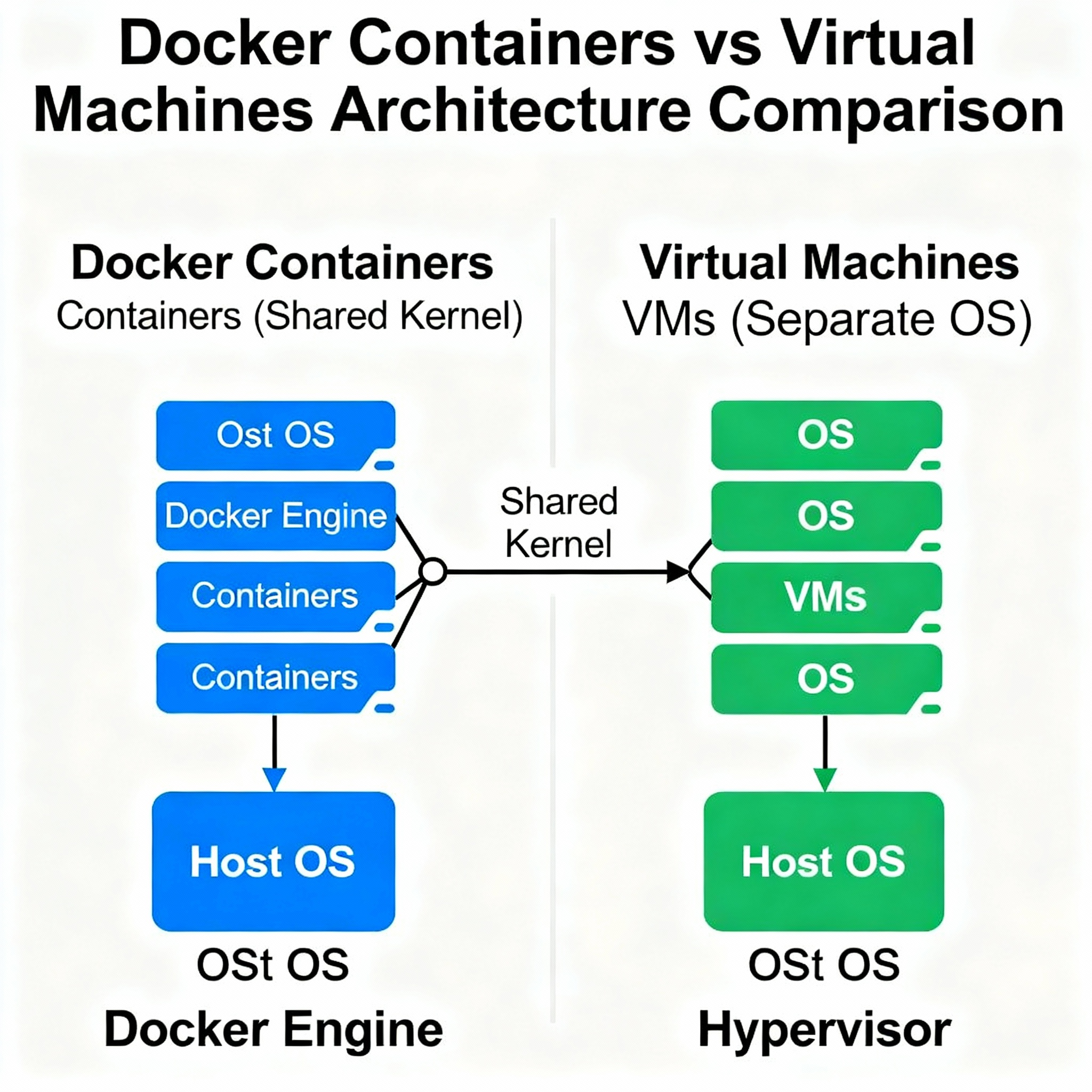
Visual comparison of container architecture (left) versus VM architecture (right)
Virtual Machines (VMs):
Virtual machines are a heavier form of virtualization where each VM runs a complete operating system. A hypervisor coordinates between the physical hardware and each VM, allocating dedicated resources like CPU, RAM, and disk space. If you run three VMs on a server, you're running three complete copies of the operating system, leading to significant resource overhead.56
Docker Containers:
Containers are fundamentally different. Rather than virtualizing an entire operating system, containers virtualize only the application layer. All containers on a single machine share the same host operating system kernel, while remaining isolated from each other. The Docker Engine coordinates between containers and the underlying OS.65
Key Differences in Practice:
| Aspect | Docker Containers | Virtual Machines |
|---|---|---|
| Architecture | Single OS kernel shared across containers | Full OS per VM with its own kernel2 |
| Startup Time | Seconds (nearly instant)2 | Minutes (need to boot full OS)2 |
| Resource Usage | Lightweight, minimal overhead2 | Heavy, each VM runs complete OS2 |
| Isolation Level | Application-level isolation2 | Full OS-level isolation2 |
| Portability | Highly portable across platforms2 | Less portable, hypervisor-dependent2 |
| Density | Hundreds or thousands per server | Tens per server2 |
| Memory Footprint | Megabytes to gigabytes | Gigabytes per instance2 |
Practical Example:
Running a single web application using a VM might consume 4GB of RAM just for the operating system alone. The same application in a Docker container might use only 256MB total. This efficiency is why companies like Netflix and Spotify can run thousands of containers on relatively modest infrastructure.4
Key Concepts: Images, Containers, and Registries
Docker Images
A Docker image is a read-only template containing everything needed to run an application: source code, runtime, system libraries, dependencies, and environment variables. Think of it as a snapshot or blueprint.78
Images are composed of multiple layered filesystems, where each layer represents a change or addition. These layers are stacked on top of each other, and because they're immutable (read-only), they can be efficiently shared among multiple containers. An image might be based on a parent image (like Ubuntu Linux) with additional layers adding Apache web server, PHP runtime, and your application code.97
Images are typically described in a human-readable file called a Dockerfile, which contains step-by-step instructions for building the image. For example:79
FROM ubuntu:22.04
RUN apt-get update && apt-get install -y python3
COPY app.py /app/
CMD ["python3", "/app/app.py"]
Docker images are immutable—once created, they cannot be modified. If you need changes, you create a new image with the desired modifications.97
Docker Containers
A Docker container is a running instance of a Docker image. When you execute docker run on an image, Docker creates a container—essentially activating that template. A single image can spawn multiple containers, and each container operates independently.107
Unlike images, containers are mutable. They have a writable layer on top of the read-only image layers, allowing you to make changes, write files, or install software during runtime. However, these changes remain isolated to that specific container and don't affect the underlying image or other containers.9
Containers are temporary by nature. When you stop a container, it exits and can be deleted. If you need to persist changes, you can save a running container as a new image using the docker commit command.8
Container Registries
A container registry is a centralized repository—essentially a library—where Docker images are stored and made available for sharing and deployment. Registries function like application stores where developers can push (upload) images and pull (download) images.311
The main types of registries include:11
- Docker Hub: The official public registry maintained by Docker, containing over 100,000 images created by vendors, open-source projects, and the community. It's the default registry most Docker environments connect to automatically.11
- Third-party registries: Managed services like Amazon ECR, Azure Container Registry, Google Container Registry, and JFrog Container Registry that provide enterprise-grade image storage and management.11
- Self-hosted registries: Private registries that organizations deploy on their own infrastructure for security, compliance, or latency reasons.11
Using a registry, developers push images after building them, allowing other team members or production systems to pull and run those images consistently.3
Installing Docker on Windows, macOS, and Linux
Installing Docker on Windows
For Windows, Docker provides Docker Desktop, which simplifies the installation process:14
- Install WSL 2 (Windows Subsystem for Linux 2): Docker Desktop uses WSL 2 to run Linux containers on Windows. Open PowerShell as Administrator and run
wsl --install. After installation completes, restart your computer.12 - Download Docker Desktop: Visit https://www.docker.com/products/docker-desktop and click "Download for Windows (WSL 2)". Save the installer file.12
- Run the Installer: Double-click the downloaded
.exefile and follow the on-screen instructions. Ensure the option "Use WSL 2 instead of Hyper-V" is checked.4 - Verify Installation: Open PowerShell and type
docker --version. You should see the installed version displayed.1
Installing Docker on macOS
macOS installation is equally straightforward using Docker Desktop:1
- Download Docker Desktop: Visit https://www.docker.com/products/docker-desktop and click "Download for Mac".
- Install: Open the downloaded
.dmgfile and drag the Docker icon to your Applications folder.1 - Launch Docker: Open Docker from Applications. Docker Desktop will guide you through initial setup.1
- Verify Installation: Open Terminal and type
docker --version.1
Installing Docker on Linux (Ubuntu/Debian)
Linux installation requires a few command-line steps:1
- Update System: Open terminal and run:
sudo apt update
sudo apt upgrade
- Install Docker: Run:
sudo apt install docker.io
- Install Docker Compose: Optionally install Docker Compose for multi-container applications:
sudo apt install docker-compose
- Start Docker Service: Enable Docker to start automatically:
sudo systemctl start docker
sudo systemctl enable docker
- Verify Installation: Run
docker --version1
Hello-World Example and Understanding Output
The simplest way to verify Docker installation and understand how it works is running the hello-world example.1314
Running Hello-World:
Open your terminal (PowerShell on Windows, Terminal on macOS/Linux) and type:
docker run hello-world
Expected Output:
Unable to find image 'hello-world:latest' locally
latest: Pulling from library/hello-world
1b930d010525: Pull complete
Digest: sha256:b8ba256769a0ac28dd126d584e0a2011cd2877f3f76e093a7ae560f2a5301c00
Status: Downloaded newer image for hello-world:latest

Hello from Docker!
This message shows that your installation appears to be working correctly.

To generate this message, Docker took the following steps:

1. The Docker client contacted the Docker daemon.
2. The Docker daemon pulled the "hello-world" image from the Docker Hub.
3. The Docker daemon created a new container from that image which runs the
   executable that produces the output you are currently reading.
4. The Docker daemon streamed that output to the Docker client, which sent it
   to your terminal.
Understanding What Happened:
When you ran docker run hello-world, Docker executed the following sequence:101413
- Image Lookup: Docker searched your local machine for an image named "hello-world". Since it didn't exist locally, Docker proceeded to search Docker Hub (the default registry).
- Image Download: Docker downloaded the hello-world image from Docker Hub and stored it locally. The hello-world image is remarkably tiny—only 1.84 KB.13
- Container Creation: Docker created a new container from the hello-world image using the Docker daemon (the background process that manages containers).
- Execution: The container executed its default command, which simply prints a message to the terminal.
- Container Exit: After printing the message, the container completed its task and exited.10
Inspecting the Container:
You can verify this by listing all containers (including stopped ones):
docker ps -a
Output shows the container that ran and exited:10
CONTAINER ID   IMAGE         COMMAND   CREATED            STATUS
a1b2c3d4e5f6   hello-world   "/hello"  2 minutes ago      Exited (0)
The exit code (0) indicates the container executed successfully without errors.10
Why This Matters:
This simple example demonstrates several Docker concepts in action: pulling images from a registry, instantiating containers, executing code in isolation, and managing the container lifecycle. Thousands of real-world applications work using these same principles.14
Advantages of Containerization in Modern Development
Consistency Across Environments
Docker containers guarantee that an application behaves identically in development, staging, and production. This "build once, run anywhere" philosophy eliminates the complexity of managing different configurations across environments. Development teams work consistently without bouncing between machines or configurations.2415
Rapid Deployment and Scaling
Containers start in seconds rather than minutes, enabling quick deployment and rapid scaling. Organizations can spin up multiple instances of an application instantly to handle increased traffic or workload. This speed is essential for microservices architectures where services scale independently.4162
Resource Efficiency
By sharing the host operating system kernel, containers consume significantly fewer resources than virtual machines. A single server can run hundreds or thousands of containers compared to dozens of VMs. This efficiency translates to lower infrastructure costs and better utilization of computing resources.24
Simplified Dependency Management
Containerizing applications eliminates dependency conflicts. Each container carries its required libraries and versions, preventing "works on my machine" problems and enabling multiple versions of the same software to coexist on the same server.12
Improved DevOps Workflows
Containers accelerate CI/CD pipelines by enabling consistent testing and deployment processes. Automated build, test, and deployment workflows become more reliable when operating on consistent container environments.17
Enhanced Scalability for Growth
Docker integrates seamlessly with orchestration tools like Kubernetes, enabling horizontal scaling by adding more container instances. Applications can grow from running on a single server to distributed across multiple cloud providers without architectural changes.417
Industry Adoption and Maturity
Major companies like Netflix, Spotify, and PayPal deploy thousands of containers daily using Docker, demonstrating its reliability and scalability at enterprise scale. The ecosystem is mature with extensive tooling, documentation, and community support.16
Summary & Practical Takeaway
Docker solves the fundamental problem of environment inconsistency by packaging applications with all their dependencies into portable, lightweight containers. Unlike virtual machines that virtualize entire operating systems, containers share the host OS kernel, making them efficient and fast.
The key mental model is simple: a Docker image is a static blueprint (like a recipe), and a Docker container is a running instance of that image (like a prepared meal). Registries are repositories where images are stored and shared.
For developers starting with Docker, the practical path forward is straightforward:
- Install Docker Desktop on your machine (Windows, macOS) or Docker Engine on Linux
- Run
docker run hello-worldto verify installation and observe how Docker works - Explore building your first simple container by creating a Dockerfile for an existing application
- Use Docker Compose to manage multi-container applications for local development
- Practice pushing and pulling images from Docker Hub to understand the registry workflow
The investment in learning Docker pays dividends quickly. It eliminates environment-related bugs, streamlines onboarding for new team members, and enables deployment patterns that scale to enterprise applications. As containerization has become the industry standard for modern application deployment, Docker proficiency is a valuable skill for any developer working with contemporary technology stacks. <span style="display:none">181920</span>
<div align="center">⁂</div>
Footnotes
-
https://dev.to/hax/how-to-install-docker-on-windows-mac-linux-235g ↩ ↩2 ↩3 ↩4 ↩5 ↩6 ↩7 ↩8 ↩9 ↩10
-
https://www.acte.in/docker-vs-virtual-machine ↩ ↩2 ↩3 ↩4 ↩5 ↩6 ↩7 ↩8 ↩9 ↩10 ↩11 ↩12 ↩13 ↩14 ↩15 ↩16 ↩17
-
https://www.sysdig.com/learn-cloud-native/what-is-a-container-registry ↩ ↩2 ↩3
-
https://codefinity.com/blog/Guide-to-Installing-Docker-on-Windows-and-Mac ↩ ↩2 ↩3 ↩4 ↩5 ↩6 ↩7 ↩8
-
https://www.qa.com/resources/blog/docker-vs-virtual-machines-differences-you-should-know/ ↩ ↩2
-
https://aws.amazon.com/compare/the-difference-between-docker-vm/ ↩ ↩2
-
https://circleci.com/blog/docker-image-vs-container/ ↩ ↩2 ↩3 ↩4 ↩5
-
https://www.ionos.com/digitalguide/server/configuration/docker-image-vs-container/ ↩ ↩2
-
https://aws.amazon.com/compare/the-difference-between-docker-images-and-containers/ ↩ ↩2 ↩3 ↩4
-
https://docker-handbook.farhan.dev/hello-world-in-docker/ ↩ ↩2 ↩3 ↩4 ↩5
-
https://jfrog.com/devops-tools/article/understanding-and-building-docker-images/ ↩ ↩2 ↩3 ↩4 ↩5
-
https://www.devsecopsnow.com/complete-tutorial-installing-docker-on-windows-desktop-step-by-step-guide-2025-edition/ ↩ ↩2
-
https://dockerlabs.collabnix.com/beginners/helloworld/ ↩ ↩2 ↩3
-
https://duplocloud.com/blog/docker-advantages-and-disadvantages/ ↩
-
https://www.linkedin.com/pulse/installing-docker-windows-macos-linux-complete-guide-muhammad-rashid-ouayf ↩
-
https://learn.microsoft.com/en-us/dotnet/architecture/microservices/container-docker-introduction/docker-containers-images-registries ↩